Delivery Tickets
To print the Delivery Tickets for the truck drivers for all items required to be delivered on the chosen date, go to the Customer Deliveries Section of the Inventory Menu. Click on Delivery Tickets.
The Delivery Tickets form will appear.
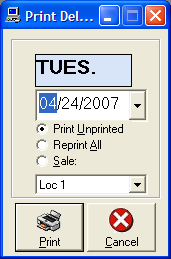
Delivery Tickets
The software will print out a delivery ticket for each sale.
It shows most of the same information as the original Bill of Sale, except it shows only the pieces that have not been delivered.
Tip: After the first items are delivered, the next time pieces come in, the Delivery Ticket turns into a backorder slip, because only the remaining pieces are listed.
Printing Tickets
Normally, up to four copies are printed when the sale is created.
One of these copies is usually marked as a delivery copy.
However, if you prefer to have the computer generate delivery tickets previous to making the delivery, go to Delivery Tickets form, choose the date, and click Print.
All orders to be delivered that day will be printed. Delivery Tickets can be reprinted as often as necessary by using the Reprint All option.
Printing for an Individual Sale
You can also print a delivery ticket for an individual sale by using the Sale: option.
Setting up Delivery Dates
Before you can use this section, the customer's delivery dates must be setup, either at the Point of Sale or after the sale is written, in Check Order Status.
Use this when Lay-A-Ways, Special Orders, Special-Specials, or Tag Incoming Stock orders have been received and need to be set up for delivery.